

The Highlights Panel is one of the most commonly used components in Salesforce. On almost every record page we configure, it’s important to have a section where the most critical fields are placed, typically at the top of the page.
For a long time, this was done exclusively through Compact Layouts in the Object Manager. With this feature, it was possible to select up to 10 fields that would be visible in the Highlights Panel.
While this functionality has always been useful, it had some limitations. Now that Salesforce is moving everything toward dynamic configurations via the Lightning App Builder, both Page Layouts and Compact Layouts are becoming less relevant and may eventually be phased out.
Key Differences
- Now, instead of being limited to 10 fields, you can add up to 12 fields in the Highlights Panel.
- You can drag and drop fields, just like with Dynamic Forms.
- It’s now possible to set dynamic visibility for fields, just like in Dynamic Forms.
Where to Find It
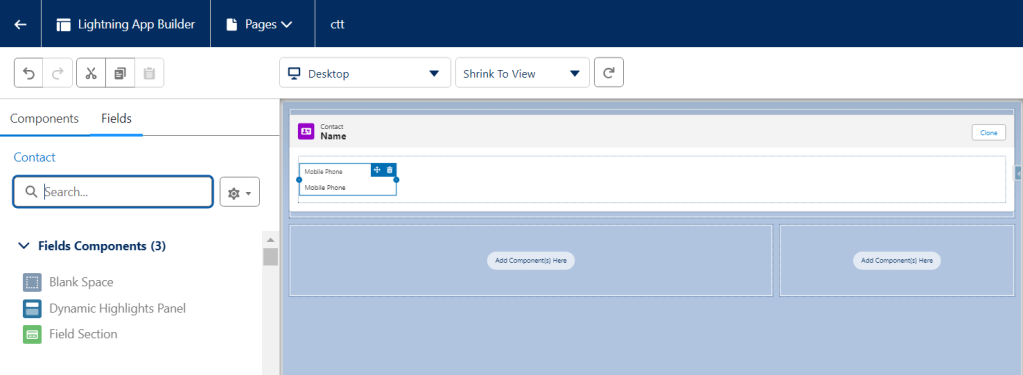
Using the component is quite simple. Some people might initially get confused about where to find it since the Highlights Panel used to be in the “Components” tab, but it has moved.
To access it, go to the “Fields” tab, where it’s located above the “Field Section” component. Then, drag and drop it to the desired place on the page.
Adding Fields
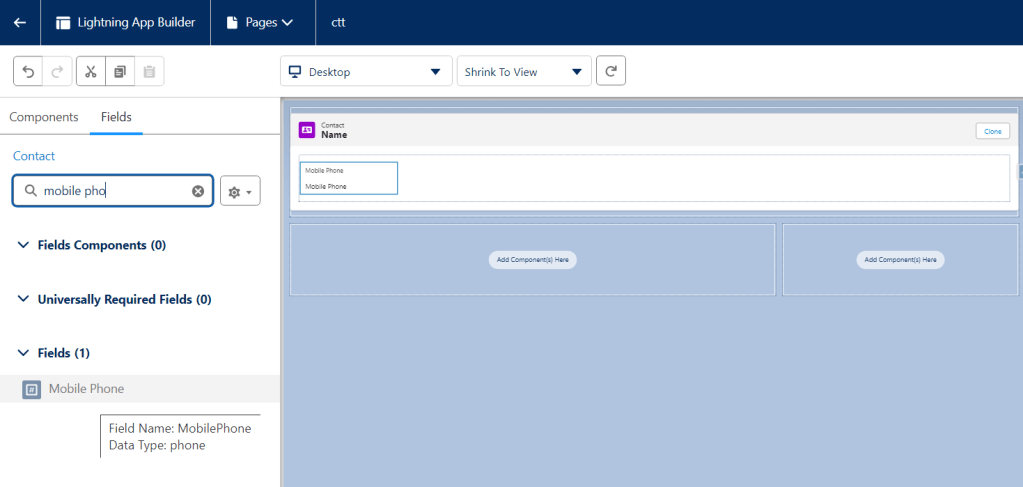
To add fields, just drag and drop them. Click on the “Fields” tab, search for the field name in the “Search Box,” and place it wherever you want within the component.
It functions similarly to a field section, allowing you to directly add fields. One detail I noticed is that it’s not possible to add “Blank Space” as you would in a field section.
Dynamic Field Visibility
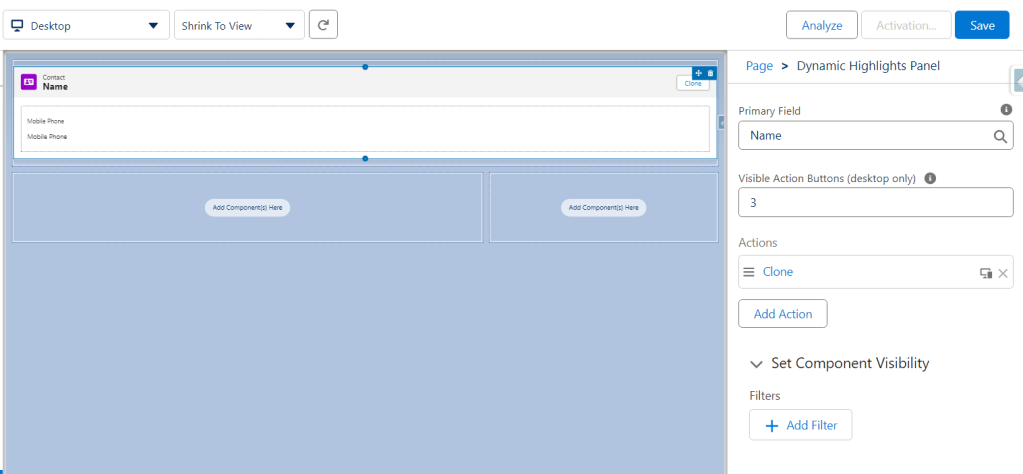
To enable dynamic visibility for a field, simply click on the field and add a filter using the “Add Filter” option. Just like other components with this functionality, you can apply visibility rules based on fields from the record itself, related records, user profile, and much more…
Primary Field
The most important field, which appears in bold and is used to identify the record, is called the Primary Field in this component.
We usually use the “Name” field for this, but it can be replaced with another field in the component settings.
Visible Action Buttons
Similar to the standard Highlights Panel, the Dynamic Highlights Panel allows you to select how many action buttons appear on the screen. If the number of buttons exceeds the set limit, they will appear in a dropdown list.
Dynamic Actions
Dynamic Actions have existed for a while and are very easy to use. Just click “Add Action” and choose the action you want to place at the top of the page.
A noteworthy feature is dynamic visibility for actions. By clicking “Add Filter,” you can apply filters based on various parameters.
Important Notes
For the component to appear on mobile record pages, you need to enable it in: Setup > Salesforce Mobile App > Dynamic Forms and Dynamic Highlights Panel on Mobile.
Final Thoughts
Salesforce is truly changing the way we build apps in the Lightning App Builder. What used to be common, like Page Layouts and Compact Layouts, is becoming obsolete.
It’s crucial to stay up to date and learn how to use these new components, as they are easier to maintain and don’t rely on legacy features. The Dynamic Highlights Panel is no exception—it’s a component that can be incredibly useful in day-to-day tasks, and I’m excited to use it in my next project!
COMMENTS:
 posts
posts 
Leave a comment