


Have you ever found yourself needing to remove object permissions from multiple profiles at the same time?
This can be very time-consuming, and the chance of making errors is higher if done manually.
One way to do this is by creating a list view in the profiles and editing from there, but personally, I don’t find it as efficient when dealing with a large number of profiles, such as over 100.
I believe it’s much more practical if we can do this through an Excel spreadsheet and import it into Salesforce. So, that’s exactly what we’re going to do.
Step 1 – Download Salesforce Inspector
Are you familiar with Salesforce Inspector? If so, skip to the next step.
Salesforce Inspector is a Google Chrome extension that we can use to import and export data from Salesforce, among other functionalities. We will use it to facilitate this task.
Download the extension with this link: https://chrome.google.com/webstore/detail/salesforce-inspector/aodjmnfhjibkcdimpodiifdjnnncaafh
Step 2 – Export the ObjectPermissions object
The ObjectPermissions object contains permission information for profiles and permission sets. We will use it to check who has permissions on the Account object.
- Open Salesforce Inspector in the arrow that is on the right of your screen.
- Click on “Data Export”.

- Enter the following SOQL query:
- To edit permissions of permission sets, remove the query filter: ‘Parent.IsOwnedByProfile = true’.
- To filter by another object, replace the object name in the condition: SobjectType = ‘Account’.
- Click on ‘Export’.
- Click on ‘Copy (Excel format)’.
- Paste the data into an Excel spreadsheet(CTRL+V).
SELECT Id, PermissionsRead, PermissionsCreate, PermissionsDelete, PermissionsEdit, PermissionsModifyAllRecords, PermissionsViewAllRecords, SobjectType, Parent.Name, Parent.Profile.Name FROM ObjectPermissions WHERE SobjectType = 'Account' AND Parent.IsOwnedByProfile = true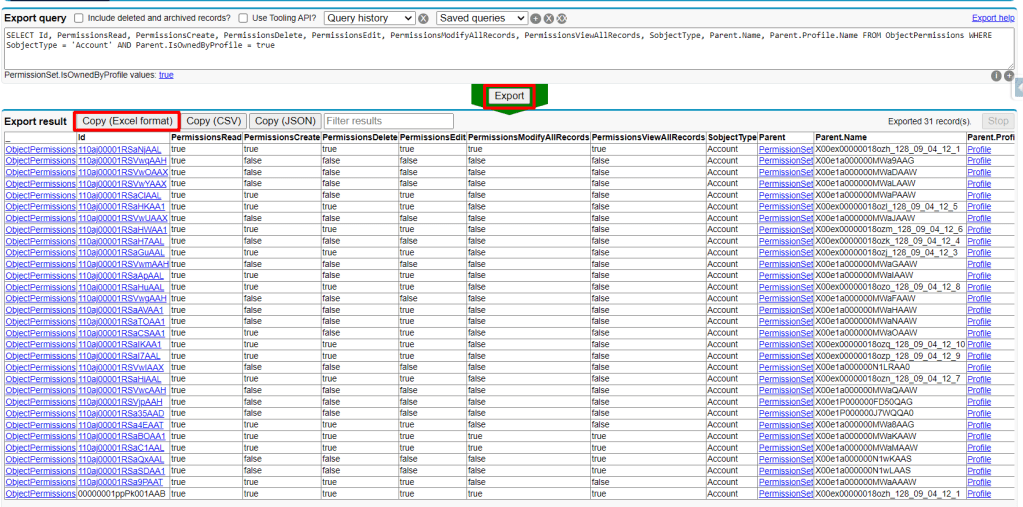
Step 3 – Edit the file
In the Excel file, each line represents a profile, and the profile name is in the ‘Parent.Profile.Name’ field. Delete the lines for profiles that will not be edited and keep those that need to be changed.
We can also see that each column represents a permission, such as PermissionsRead, PermissionsCreate, PermissionsDelete, PermissionsEdit, PermissionsModifyAllRecords, PermissionsViewAllRecords. Edit each column as needed. To remove a permission, write ‘false’ in the cell corresponding to the profile and the desired permission.
In this case, we will remove the Edit and Delete permissions from some profiles.
Follow these Steps:
- Delete the lines that have the profiles that you do not need to remove the permission.
- I have already deleted the line for the System Administrator profile and some others.
- Change the permission to ‘False’ to all of the permissions that you need to remove.
- Prefix each unused field with an underscore “_” so that the inspector will recognize it as inactive.
- In this case, I will apply this to the fields ‘PermissionsRead’, ‘PermissionsCreate’, ‘PermissionsModifyAllRecords’, and ‘PermissionsViewAllRecords’.
- Example: _PermissionsRead

Step 4 – Import the file
After importing, all Edit and Delete permissions will be removed from the profiles on the Account object.
To import the file, follow these steps:
- In the Inspector, click on ‘Data Import’.
- Set up the Inspector as follows:
- Action: Update
- Object: ObjectPermissions
- Format: Excel
- Copy and paste the cells from the spreadsheet into the “Data” field: CTRL+C + CTRL+V
- Click on ‘Import’.
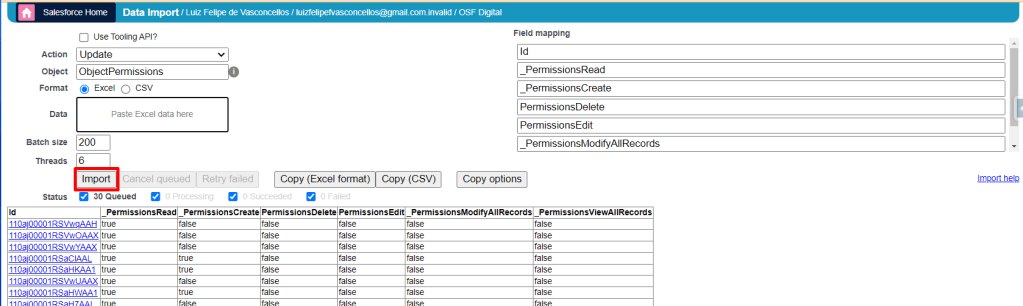
You can now review the profiles. They no longer have the permissions!
To wrap things up, using Salesforce Inspector alongside Excel turns a complex task into a simple checklist item. It’s about giving you back your time while keeping your Salesforce space secure and efficiently managed.
COMMENTS:
 posts
posts 
Leave a comment